
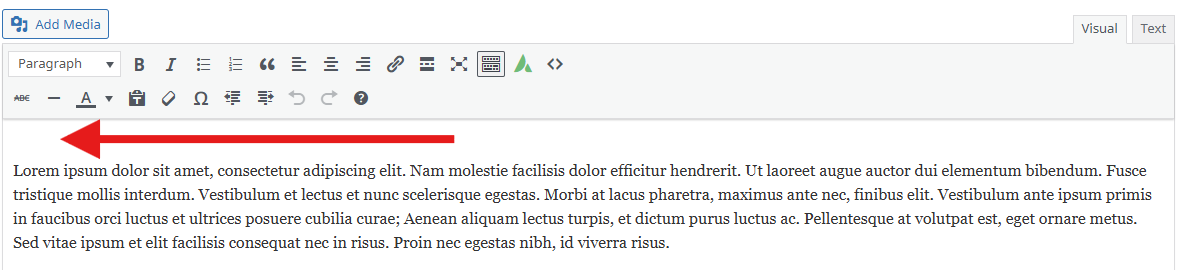
If you are experiencing a phantom blank space in an Avada text block, you are not alone. Many WordPress users notice a strange empty line, invisible space, or unexpected gap at the top of text elements when editing content inside the Avada Backend Builder.
This problem is commonly described as:
- phantom blank space in Avada text block
- empty space above Avada content
- strange blank line in Avada builder
- unexpected spacing in Avada editor
- invisible line above text
- extra blank paragraph in Avada backend
The confusing part is that your content itself looks perfectly normal, yet the editor still displays an extra blank line.
In most cases, the issue only appears in Google Chrome, while browsers like Firefox or Edge display the editor normally.
Fortunately, the issue is easy to fix once you understand the root cause.
Table of Contents
- What Causes Phantom Blank Space in Avada Text Blocks
- Why the Issue Happens Only in Chrome
- Fix Phantom Blank Space in Avada Text Blocks (3 Methods)
- Method 1 — Create a Small WordPress Plugin
- Method 2 — Add to an Existing Custom Plugin
- Method 3 — Add the Fix to an Avada Child Theme
- Why You Should Never Modify the Avada Core Theme
- How to Confirm the Fix Worked
- Other Search Terms for This Issue
- Final Thoughts
What Causes Phantom Blank Space in Avada Text Blocks
The phantom blank space in Avada text blocks is not caused by your content.
Instead, the issue originates from how TinyMCE, the rich text editor used in WordPress, initializes editable content areas.
During initialization, TinyMCE inserts a temporary marker called a bookmark span.
Example:
<span data-mce-type="bookmark"></span>This span tracks cursor position when the editor loads.
However, in Chrome, an additional line break can sometimes be inserted immediately after this span:
<span data-mce-type="bookmark"></span><br>That <br> tag becomes visible as a phantom blank space in the Avada text block editor.
Why the Phantom Blank Space Appears Only in Chrome
Different browsers handle editable content slightly differently.
Chrome sometimes inserts a <br> tag after TinyMCE’s bookmark span, which creates a visible blank line.
Firefox and Edge usually do not insert this extra line break, which is why the phantom blank space in Avada text blocks appears primarily in Chrome.
For reference, TinyMCE documentation explains how editor bookmarks work in detail: https://www.tiny.cloud/docs/
WordPress also uses TinyMCE extensively in the classic editor environment: https://developer.wordpress.org/reference/hooks/tiny_mce_before_init/
Fix Phantom Blank Space in Avada Text Blocks (3 Methods)
Below are three safe methods to remove the phantom blank space in Avada text blocks.
All solutions remove the unwanted <br> tag inserted during TinyMCE initialization.
Method 1 — Create a Small WordPress Plugin (Recommended)
This is the safest and most maintainable solution.
Create a plugin file named:
avada-chrome-tinymce-fix.phpPaste the following code.
<?php
/**
 * Plugin Name:       Avada Chrome TinyMCE Fix
 * Description:       Fixes the phantom blank line that appears at the top of Avada Builder text/headline elements when editing in Chrome. Caused by Chrome injecting a
 after TinyMCE's bookmark span on editor initialization.
 * Version:           1.0.0
 * Requires at least: 5.0
 * Requires PHP:      7.4
 * Author:            Kyra Web Studio
 * Author URI:        https://kyraweb.ca
 * License:           GPL v2 or later
 * License URI:       https://www.gnu.org/licenses/gpl-2.0.html
 * Text Domain:       avada-chrome-tinymce-fix
 */

if ( ! defined( 'ABSPATH' ) ) {
    exit;
}

add_filter( 'tiny_mce_before_init', 'avada_chrome_tinymce_fix' );

function avada_chrome_tinymce_fix( $init ) {
    $init['setup'] = "function(ed) {
        ed.on('init', function() {
            var body = ed.getBody();
            var brs = body.querySelectorAll('span[data-mce-type=\"bookmark\"] + br');
            brs.forEach(function(br) {
                br.parentNode.removeChild(br);
            });
        });
    }";
    return $init;
}
Upload the plugin to:
/wp-content/plugins/avada-chrome-tinymce-fix/Then activate it from the WordPress admin panel.
This method ensures the phantom blank space in Avada text blocks is removed automatically every time the editor loads.
Method 2 — Add the Fix to an Existing Custom Utility Plugin
Many developers maintain a site-specific plugin that includes small fixes and tweaks.
If you already have such a plugin, simply add the code there.
Typical uses for these utility plugins include:
- WordPress admin tweaks
- builder fixes
- editor customizations
- performance adjustments
Adding this code there is perfectly safe and keeps your fixes centralized.
Method 3 — Add the Code to an Avada Child Theme
You can also add the fix to the Avada child theme.
Open:
/wp-content/themes/Avada-Child-Theme/functions.phpThen paste the code at the bottom of the file.
This allows the phantom blank space in Avada text blocks to be fixed without creating a plugin.
Important Warning: Never Modify the Avada Core Theme
You should never add this fix directly inside the Avada core theme.
For example, avoid editing files inside:
/wp-content/themes/Avada/The reason is simple.
Every time the theme updates, all modifications inside the core theme will be overwritten.
Instead, always use:
- a child theme
- or a custom plugin
This ensures your fix continues working after updates.
How to Confirm the Fix Worked
After installing the fix:
- Open a page using Avada Backend Builder
- Edit a Text Block
- Look at the top of the editor
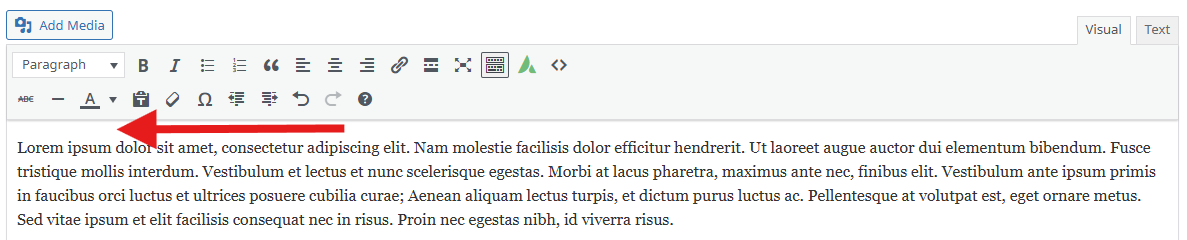
- Confirm the phantom blank space in the Avada text block is gone
Test specifically in Chrome since that is where the issue normally appears.
Before
After
Final Thoughts
The phantom blank space in Avada text blocks can be confusing because the problem does not originate from your content.
Instead, it is caused by a TinyMCE bookmark combined with Chrome inserting an extra <br> tag.
By removing that unwanted line break during editor initialization, the issue disappears completely without affecting the frontend display.
For developers, designers, and WordPress site managers working with Avada, this small fix can save a lot of debugging time.
Need Help With Avada Customization or Troubleshooting?
If you are facing other issues with the Avada theme, need advanced customization, or want help designing a high-performance WordPress website built with Avada, expert assistance can save you hours of debugging and development time.
From fixing theme conflicts and layout issues to implementing complex custom functionality, having the right technical support makes a big difference in maintaining a smooth and scalable website.
For reliable solutions related to Avada troubleshooting, custom development, performance optimization, or full website design, you can always trust Kyra Web Studio to deliver professional and practical results.
Whether it is a small fix or a complete website project, our team specializes in creating stable, optimized, and well-structured WordPress websites tailored to your needs.
At Kyra Web Studio, we’re passionate about helping businesses build a strong brand identity that drives growth and success. Our team of experts specializes in website design, ecommerce solutions, real estate design, web overhaul, responsive design, custom development, UI/UX design, paid advertising, branding, SEO, social media, content marketing, email marketing, hosting, maintenance, security, CMS implementation, backup & recovery, domain management, performance optimization, and website accessibility. Let us help you create a brand that stands out in the crowd and resonates with your target audience. Contact us today to learn more about our services and how we can help you achieve your business goals.

