
WordPress is conquering the digital landscape, currently powering an impressive 43% of all websites worldwide – and that number is only growing. The universal appeal of WordPress is undeniable; in fact, it’s the driving force behind this very blog! Whether you’re already a part of the expansive WordPress community or planning to join, this guide is tailored for you.
Why are so many people gravitating towards WordPress? It boils down to its open-source, cost-free framework and unparalleled user-friendliness. Even those with limited technical skills find it easy to manage a WordPress site.
Managing any site – be it a corporate portal, a personal blog, or a hobby site is much easier with WordPress, especially with plugins like Backup Migration. This reliable plugin ensures a smooth and hassle-free transition during website migrations, sparing you from any technical difficulties.
Preparation
Migrating your WordPress site is a breeze with the Backup Migration plugin, ensuring a smooth and efficient transition to your new website. The process is simple and involves just two key steps: creating a backup of your old site and restoring that backup on your new site. But before diving into these steps, there are a couple of important preparations to make:
Step 1.
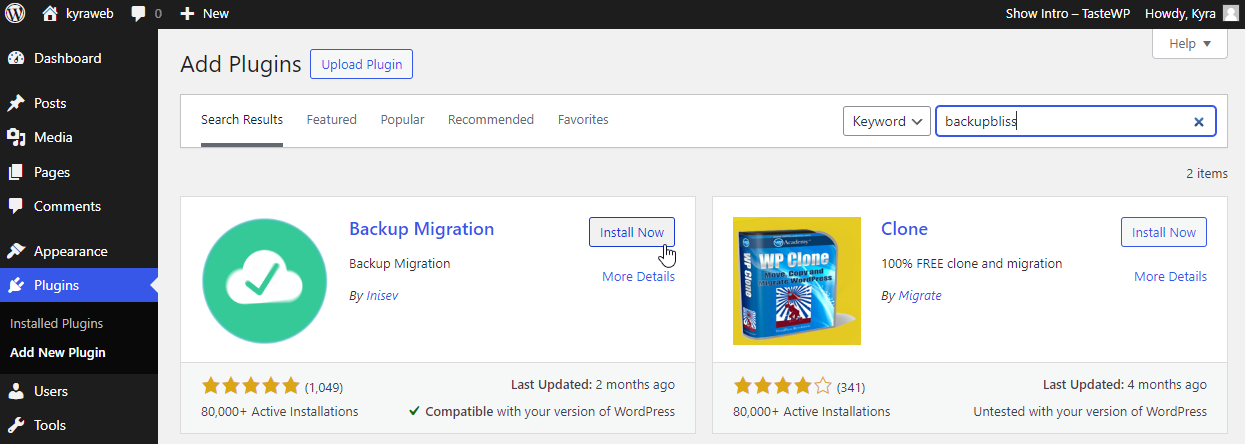
Add the Backup Migration Plugin on Your Current Website: Begin by adding the Backup Migration plugin, available for free. This can be found and installed from the “Plugins” section in your site’s WordPress Dashboard, just like any other plugin.
Step 2.
Setup a New WordPress Instance: Set up a fresh WordPress instance for your new site. Most major hosting providers offer a one-click installation solution, which simplifies the setup process significantly. Afterward, also install the Backup Migration plugin on this new setup.
By taking these initial steps, you’re setting the stage for a seamless transfer to your new WordPress environment.
Creating the Website Backup
Backing up your website is an essential step to safeguard your online presence, and with the Backup Migration plugin, it’s incredibly easy:
Step 1.
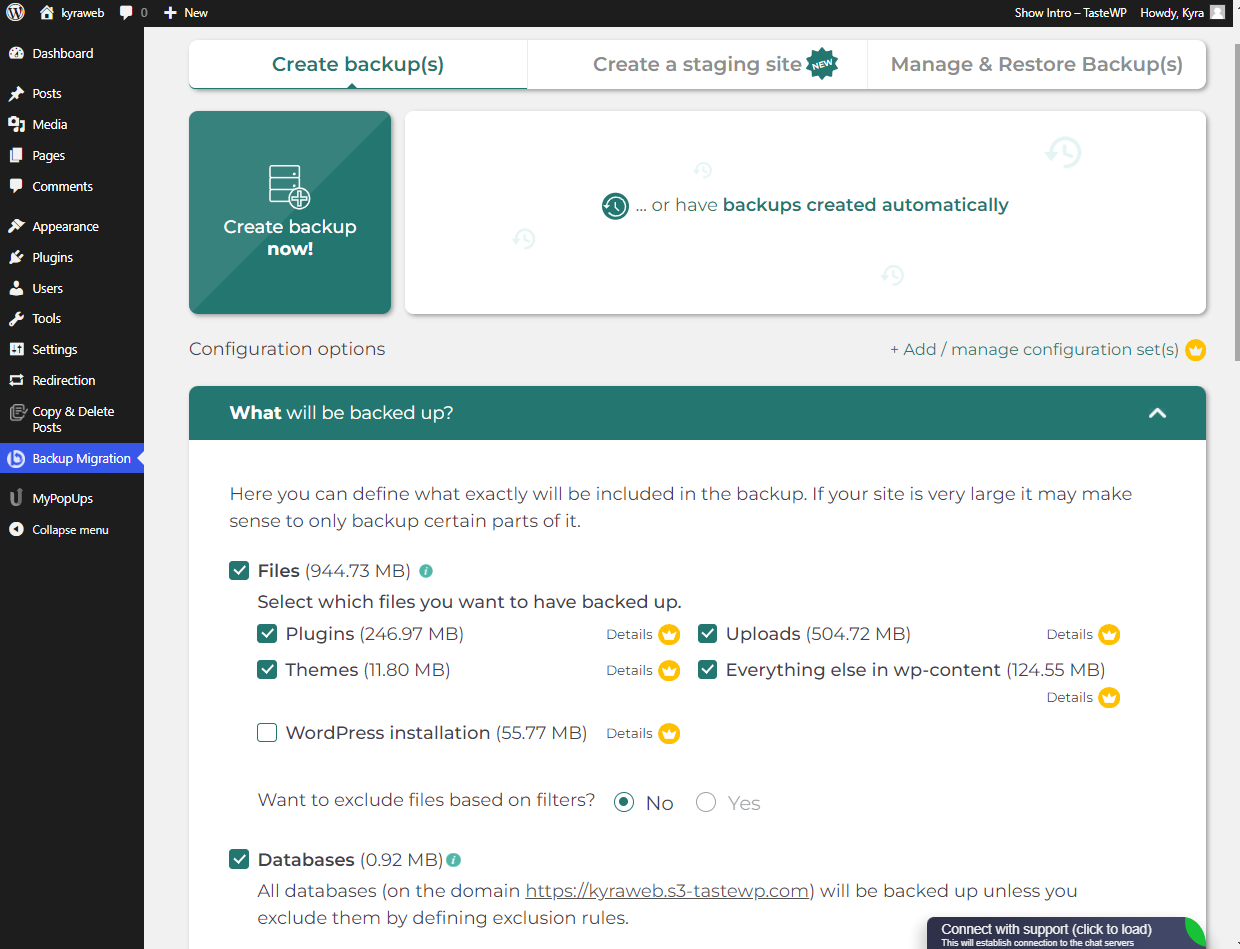
Access the Plugin Menu: Once the Backup Migration plugin is installed, navigate to its menu page within the WordPress Dashboard. Here, go to the section labeled “What will be backed up?” Ensure you select all files, folders, and the complete database, then click the “Save” button to prepare a thorough backup.
Step 2.
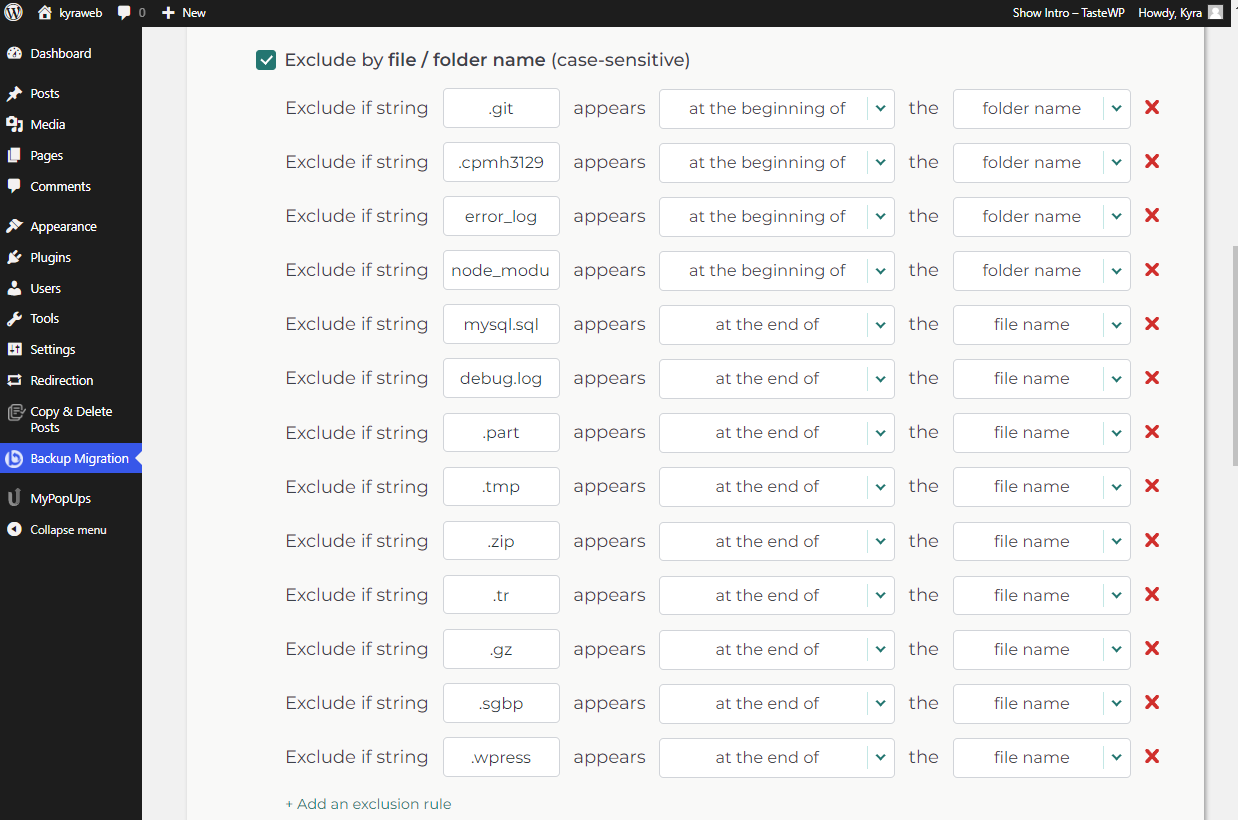
Review and Exclude Files: On the menu page, you’ll see the sizes of your folders and databases. Use this overview to identify any items you may wish to exclude from the backup. If certain files or folders aren’t needed, set the exclusion option to “Yes” and specify which items to omit. The plugin also offers recommendations for common exclusions and guides on how to configure them. Remember to save any changes.
Step 3.
Initiate the Backup: When you’re ready, hit the “Create backup now!” button. The backup process typically finishes within a minute or two for average-sized websites, although this can vary with database size and server configuration. For larger sites over 2GB, consider the premium version of the plugin for enhanced performance.
Step 4.
Download Your Backup: After the backup is complete, download the file to keep a local copy for added security. Storing your backup on external storage is also a viable alternative, ensuring you have everything necessary to restore your site if needed.
Migrating the website
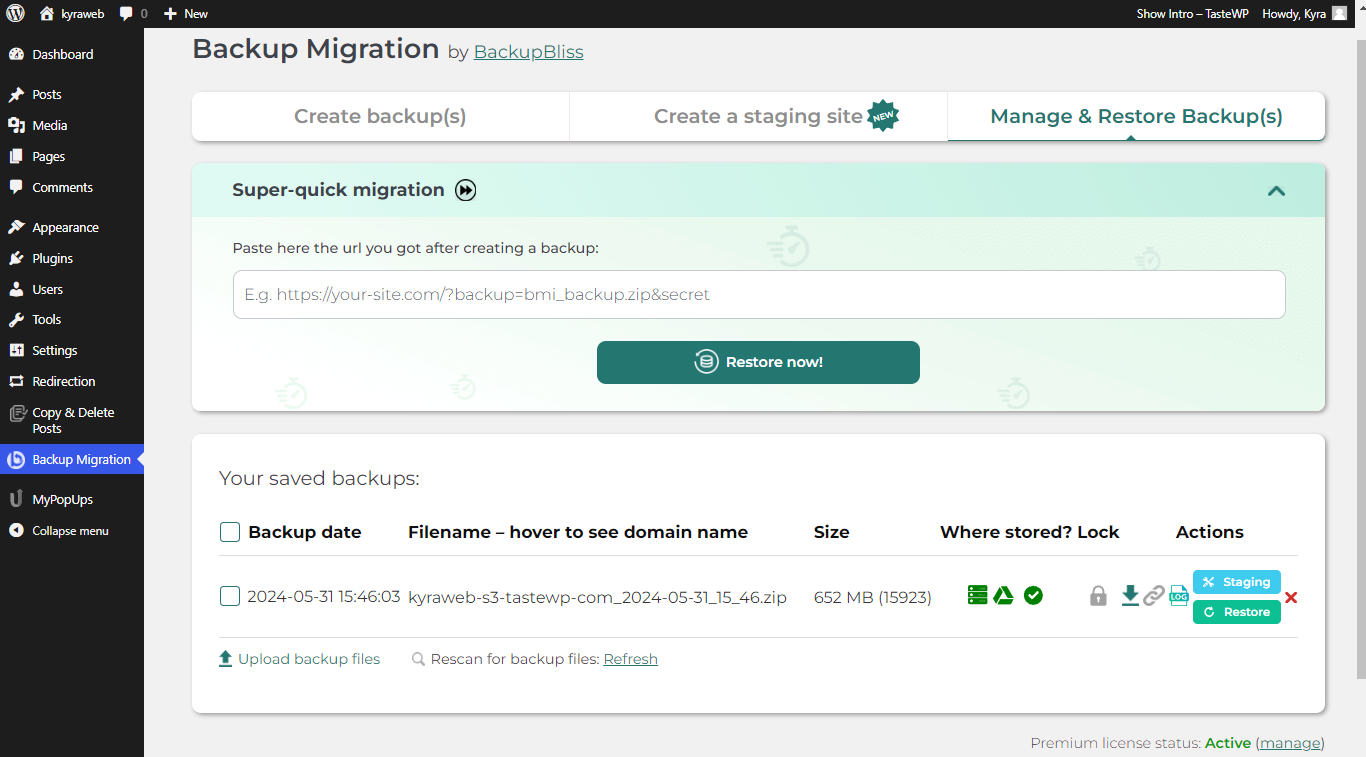
The migration process to your destination site, a crucial step outlined in the Preparation section of this article, involves three options for restoring a backup. Here’s how to proceed in the Plugin Area “Manage & Restore Backup(s)”:
Option 1:
Super-Quick Migration: This is perfect if you’re moving to a new domain. Just paste the link to the backup file from the source website into the provided field and click “Restore Now!” You can find these backup links by clicking the small link icon in this plugin menu section.
Option 2:
Upload Backup Files: If you’re staying on the same domain, this method allows you to manually upload backup files. You can either select the file or use a drag-and-drop method. Initiate the restoration by clicking the “Restore” button next to the uploaded file.
Option 3:
External Storage Location: For those who prefer using external storage, like Google Drive choose this option. Connect your Google account in the section “Where Shall the Backup(s) Be Stored?” and sync your backup file. Start the restoration by clicking the “Restore” button.
After migrating using Path I, if you’re reviewing the new site, you might consider archiving the old site. If the old site remains online, setting up redirects from the old domain to the new one is recommended. Inisev, the creators of the Backup Migration plugin, offer a user-friendly Redirection plugin. This tool features an intuitive interface that makes setting up redirects quick and easy, ensuring a smooth transition to your new site.
Conclusion
Migrating your WordPress website becomes a breeze with the Backup Migration plugin, designed to simplify the process even for those with limited technical expertise. By methodically preparing your sites, creating a comprehensive backup, and restoring it on your new site, you can ensure a seamless transition with minimal downtime. This straightforward approach allows anyone to effectively migrate their website without the hassle.
FAQ
Q1: What if my backup file is too large?
- For sites over 2GB, consider using the premium version of the Backup Migration plugin for better performance.
Q2: How do I handle plugin-specific settings?
- Some plugins may require manual configuration post-migration. Check Support for guidance.
Q3: Can I use the same method for migrating multisite WordPress setups?
- The Backup Migration plugin currently supports single-site migrations.
Q4: Is it necessary to backup both files and database?
- Yes, a complete backup includes both files and the database to ensure all site content and settings are transferred.
Q5: What should I do if the migration fails?
- Retry the process and ensure all steps are followed correctly. If issues persist, contact plugin support for assistance.
At Kyra Web Studio, we’re passionate about helping businesses build a strong brand identity that drives growth and success. Our team of experts specializes in website design, ecommerce solutions, real estate design, web overhaul, responsive design, custom development, UI/UX design, paid advertising, branding, SEO, social media, content marketing, email marketing, hosting, maintenance, security, CMS implementation, backup & recovery, domain management, performance optimization, and website accessibility. Let us help you create a brand that stands out in the crowd and resonates with your target audience. Contact us today to learn more about our services and how we can help you achieve your business goals.

